In the previous post we created and managed reports, in this post we will package software for local installation and virtualization.
Packaging Software for Local Installation and Application Virtualization
Often times when packaging an application, it’s easiest to search google for how you do the silent install of the application. This will show you the switches you need for the package to install without user input. I will be packaging 7zip to deploy to computers in the lab.
For packaging up an application I like to use Scalable Smart Packager CE: http://download.cnet.com/Scalable-Smart-Packager-CE/3001-2216_4-10973399.html?hlndr=1

Select Discover new package. Select Next. On the output folder tab select Browse. I have my package stored in c:\Packages. Call the package: 7zip. Select Next.

Click On Start Discovery in order to learn about the package.
Now run the install for 7zip. When you are done installing 7zip click on Stop Discovery and select Next.
Any specific settings for the application install can be changed here.

Select Next. Select Add new Package to Smart Packager and Select Finish.

This will now create the package called 7zip. The package is now ready for deployment to a test computer.
Deploying the Package
Open Configuration Manager. Go to Software Library, Packages, and right-click to select Create Package.
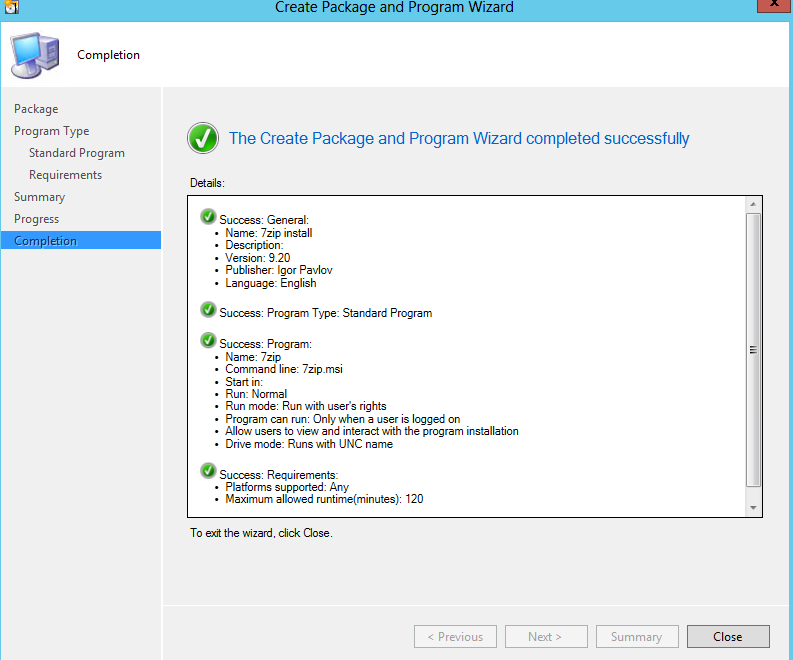
In name call it 7zip install, Manufacturer: Igor Pavlov, Language: English, Version: 9.20. Select Next.

Keep it at a standard program and select Next.
On Standard Program input the following:

Select Next.
On requirements leave at defaults and select next.

Select Next and Next again. Completed successfully.
Create a collection for the 2 computers you want to test deployment on. I am using 2 Windows XP PC’s and I have called the collection: computers to test 7zip on. Go back to Software Library, and 7zip install. Right-click and select Deploy.
Set the collection to computers to test 7zip on and select Next.

Select the add button at the bottom and make the ConfigMgr server the distribution point. Select Next.

Select next to accept the defaults on how the software is deployed.

On the scheduler, select New and set it for a couple minutes from now.
Select Next. On the User Experience check software installation. Select Next.

Leave the defaults for distribution point and select Next.

Select Next. On the summary select next again to create the package to be deployed. Success!

It may take several minutes to fully deploy. You can check on the status of the deployment by looking at the deployments tab.
Virtualization of Applications
In order to Virtualize Applications you will need:
- A Domain Controller
- SQL Server for the App-V database
- App-V Management and Publishing Server
- App-V Client (Windows Desktop)
- Sequencing Machine
I used the following guide in order to ensure App-V was installed on my host PC’s VirtualBox server: http://bretty.me.uk/how-to-install-microsoft-app-v-5-full-infrastructure/
Distribution of a Package or software from a different location
It may be beneficial to deploy software from a different server than configuration manager. For example, in order to not overburden my configuration manager single server, I have a distribution server set up on a different computer named ??. I will be deploying software from this computer.
On the next post we will be working with software distribution (2007 era) packages and programs.